
How it works
The Slack connector indexes all public channels for a given workspace. To index private channels, add the Slack App to the private channel. For Slack Enterprise Grid orgs, a single install covers every workspace in the org. See Enterprise Grid setup below.Setting up
Authorization
1
Admin requirement
Note: You must be an admin of the Slack workspace to set up the connector
2
Navigate to Slack Apps
Navigate and sign in to https://api.slack.com/apps.
3
Create new Slack app
Create a new Slack app: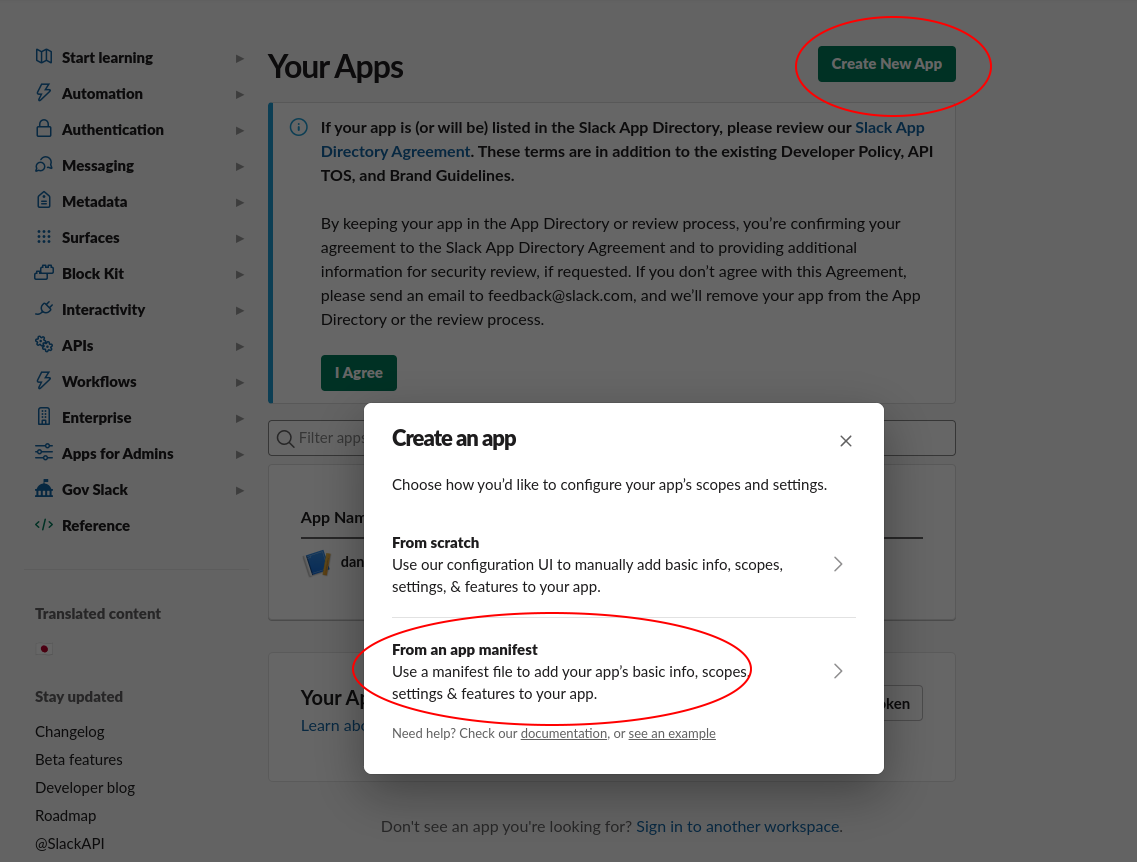
- Click the Create New App button in the top right.
- Select From an app manifest option.
- Select the relevant workspace from the dropdown and click Next.
4
Configure app manifest
Select the “YAML” tab, paste the following manifest into the text box, and click Next:
5
Create the app
Click the Create button.
6
Navigate to OAuth permissions
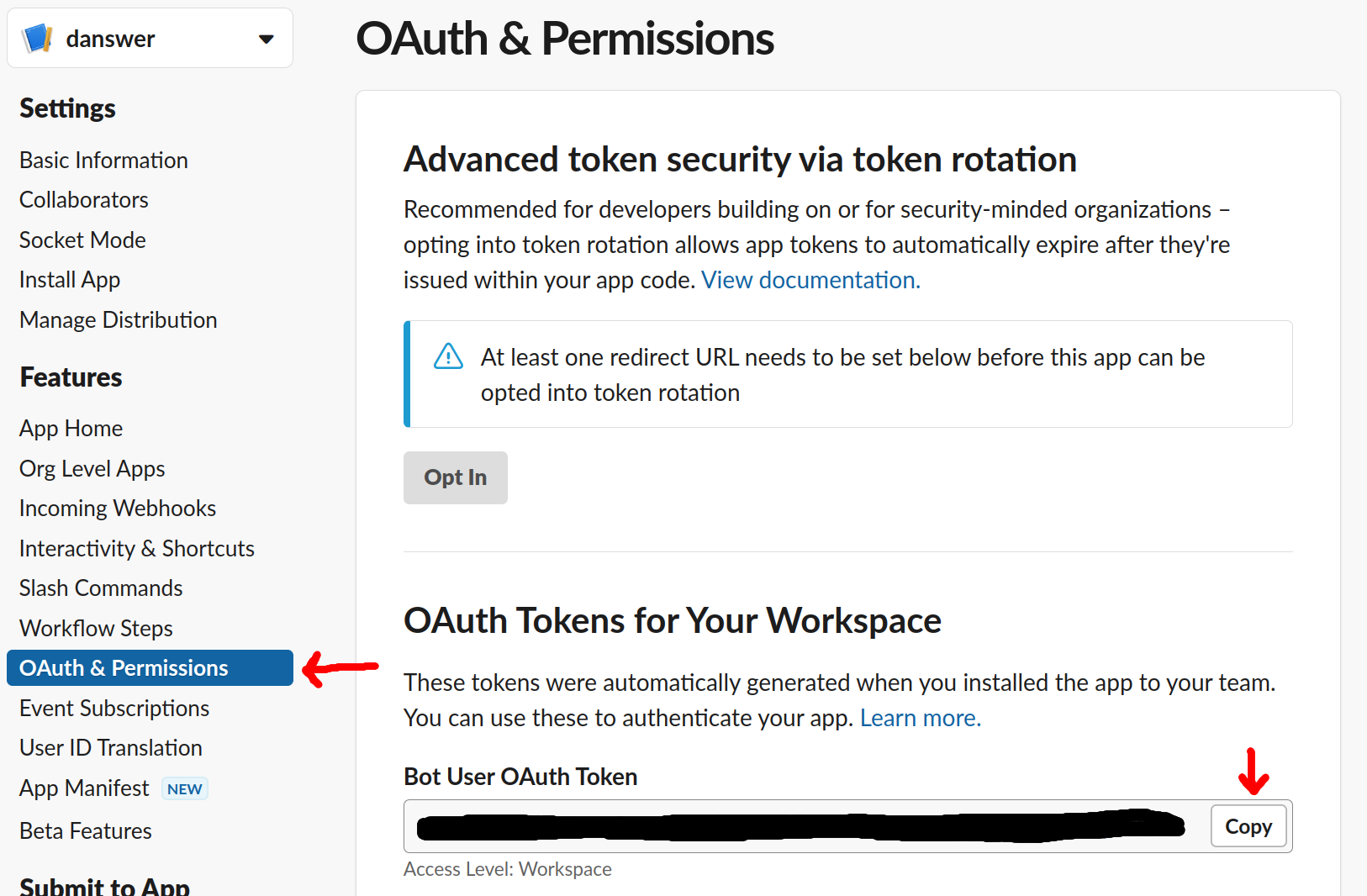
In the app page, navigate to the OAuth & Permissions tab under the Features header.
7
Copy OAuth token
Copy the Bot User OAuth Token, this will be used to access Slack.
Indexing
1
Navigate to connector
Navigate to the Connector Dashboard and select the Slack Connector.
2
Provide credentials
Place the Bot User OAuth Token under Step 1 Provide Credentials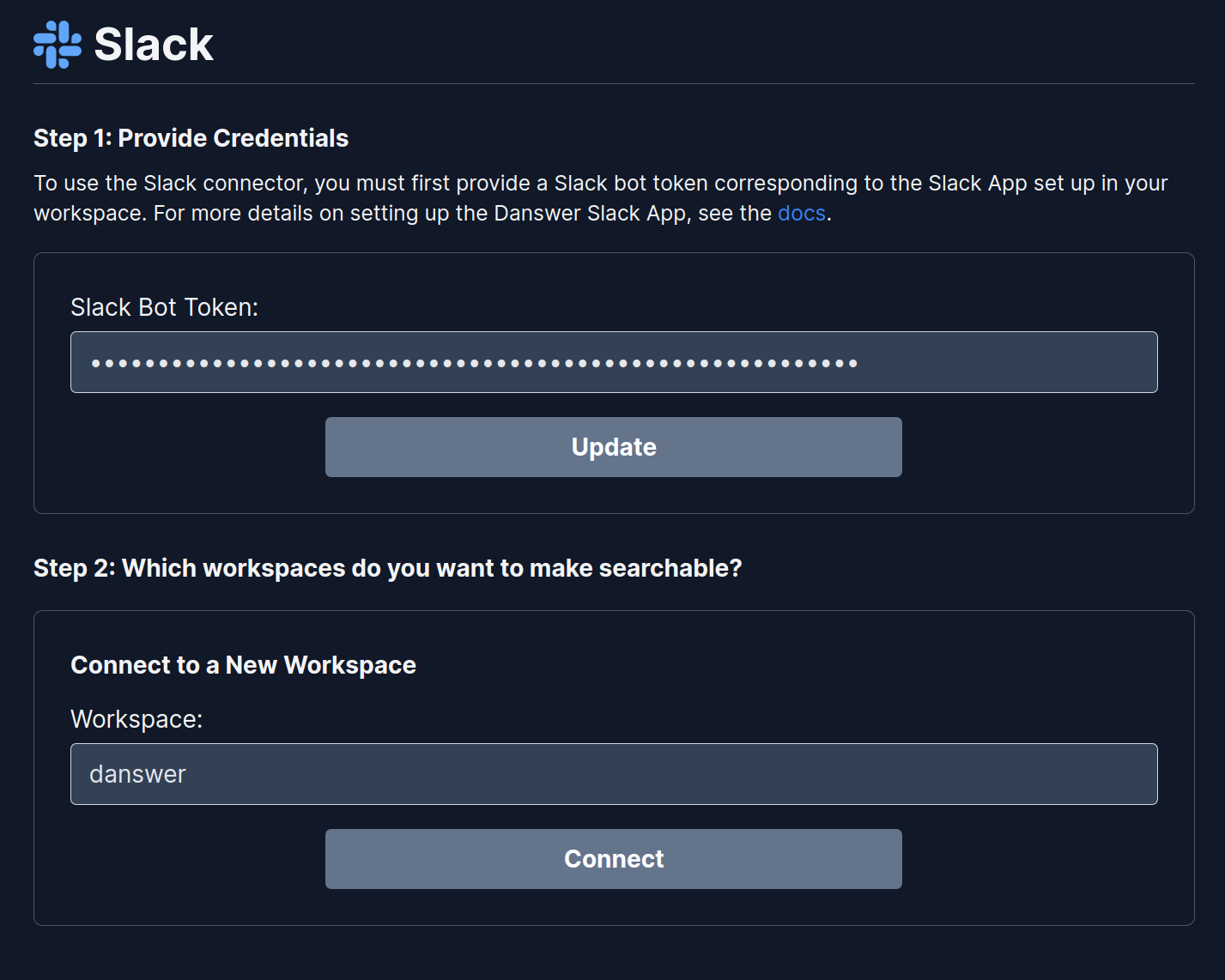
3
Set workspace ID and connect
Set the Workspace ID (see below) and click Connect.
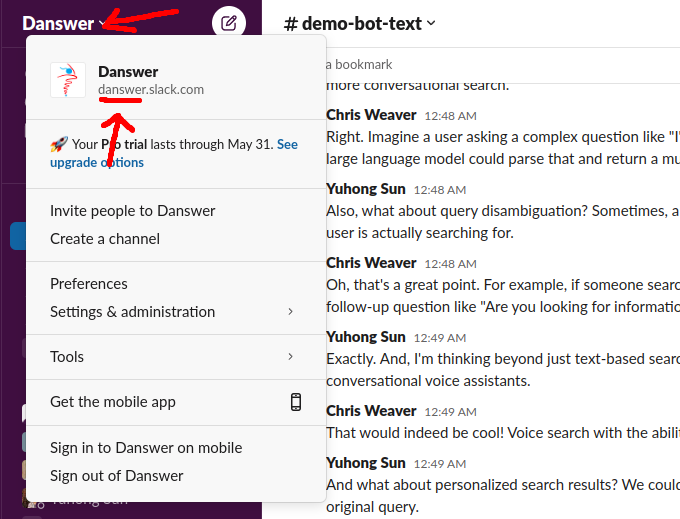 Note: The first indexing pulls all of the public channels and takes longer than future updates.
Enterprise Grid setup
If your Slack instance is an Enterprise Grid org with multiple workspaces, you go through the app-creation flow once at the org level and use a single org-level bot token in Zortex. Slack still requires the org admin to choose which workspaces the bot is deployed to (it is not auto-deployed to every workspace just because the app is approved at the org level). Zortex detects Grid automatically from the bot token and indexes every workspace the bot has been deployed to.You must be an Org Owner or Org Admin of the Slack Enterprise Grid org to do the org-level install.
What changes vs the single-workspace setup
- The app manifest must enable org-level deploys and include the
team:readscope. - You install the app to the organization once (a single OAuth approval as Org Admin), but you must also pick which workspaces in the org the bot is deployed to — Zortex can only index the workspaces the bot is actually a member of.
- Channel links in indexed documents resolve to the correct per-workspace URL.
- Document permissions for public channels are scoped to the users in the workspaces the channel is shared into (not the entire org), so a user in Workspace A cannot see Workspace B’s public channel documents in Zortex.
Authorization (Grid)
1
Create a new Slack app
On https://api.slack.com/apps, click Create New App → From an app manifest.
Select any workspace inside your Grid org as the development workspace (the manifest below promotes the app to
org-level on install).
2
Use the Grid manifest
Paste the following manifest. The two differences from the single-workspace manifest are
org_deploy_enabled: true and the added team:read bot scope:3
Install to the organization
Open OAuth & Permissions and click Install to Organization (not “Install to Workspace”).
Approve the request as an Org Admin.
This is a single OAuth approval — it does not deploy the bot to any workspace yet.
4
Deploy the bot to each workspace you want indexed
Slack does not auto-deploy org-approved apps to every workspace.
Open the Grid org admin panel (
https://<your-org>.enterprise.slack.com/admin) → Apps → Zortex Connector,
and select the workspaces the bot should be deployed to.
Without this step auth.teams.list returns zero workspaces and Zortex will only see the workspace the app was
developed in.5
Copy the org-level bot token
Back on the app’s OAuth & Permissions page, copy the Bot User OAuth Token.
The token starts with
xoxb- just like a regular bot token but carries org-level permissions.Indexing (Grid)
The connector setup in Zortex is identical to the single-workspace flow — paste the bot token and click Connect. Zortex inspectsauth.test() on the token; if enterprise_id is present it switches to Grid mode automatically:
- Enumerates workspaces via
auth.teams.list - Lists channels per workspace via
conversations.list?team_id=...and dedupes org-shared channels - Resolves the per-workspace URL via
team.infofor channel link building - Builds per-workspace user-email sets for public-channel permission scoping
Permission scoping behavior
Troubleshooting (Grid)
Validation error: missing `team:read` scope
Validation error: missing `team:read` scope
The Grid path requires
team:read to enumerate workspaces. Add the scope to the manifest,
reinstall the app to the organization, and copy the new bot token into Zortex.Zortex only indexes channels from one workspace
Zortex only indexes channels from one workspace
auth.teams.list only returns workspaces the bot has been added to.
Open the Grid org admin panel → Apps → Zortex Connector and add it to every workspace you want indexed,
then trigger a new index attempt.A user from another workspace can search a workspace's public-channel content
A user from another workspace can search a workspace's public-channel content
Only happens when the per-workspace user union exceeds
5000.
Above that limit Zortex falls back to marking the doc public so it stays accessible;
the same fallback applies when none of the channel’s workspaces are in Zortex’s cache (for example a workspace added
to the Grid org after the connector was set up). Re-saving the credential re-builds the workspace cache.