
Overview
You can access Zortex Cloud or your self-hosted instance through a Discord bot.If you want to use Zortex Cloud, you must use the official ZortexBot Discord app.Self-hosted instances must create their own Discord app in the Developer Portal.
Configuration
Discord App
You’ll need to be an admin of the Discord server and an admin in your Zortex instance to install and configure the integration.1
Create and install your Discord app
Create your own application in the Discord Developer Portal,
then install it in your Discord server.
2
Allow access to a private text channel
Go to the channel settings and click on the “Permissions” tab.Add ZortexBot to the “Allowed Users” list.
3
Create a registration key in Zortex
Create or log in to your account on Zortex Cloud.Navigate to the Zortex Admin Panel > Discord Bots and click on the Add Server button.Copy the registration key.
The registration key will only be shown once. If you lose it,
delete the server configuration and create a new one.The key is invalidated as soon as you use it and does not allow any other access to your Zortex instance.
4
Register your Server in Zortex
Send your registration key in the private channel you allowed ZortexBot to access.ZortexBot should respond with a message confirming the server has been registered.In Zortex, you should see the server status Registered.
5
Configure Channel behavior
Click the pencil icon next to the server name to configure the bot’s behavior.You can customize:
- The default agent that powers the bot’s responses
- Agent overrides for specific channels
- Whether the bot should respond to all messages or only to messages tagged with @ZortexBot
- Whether the bot responds in replies or threads
Self-hosted Discord Bot
If you want to deploy your own Discord bot with your self-hosted Zortex instance, you’ll need to set up your own Discord app.In the Developer Portal, you’ll see references to “Guilds.” This is Discord’s internal term for servers.
1
Create a new Discord app
Navigate to the Discord Developer Portal
and click New Application.Give your app a name and click Create.
2
Configure permissions and installation settings
Navigate to the Installation tab.Uncheck User Install. The Discord app cannot be installed for pesronal use.
It must be installed in servers only.Add the following scopes:Add the following permissions: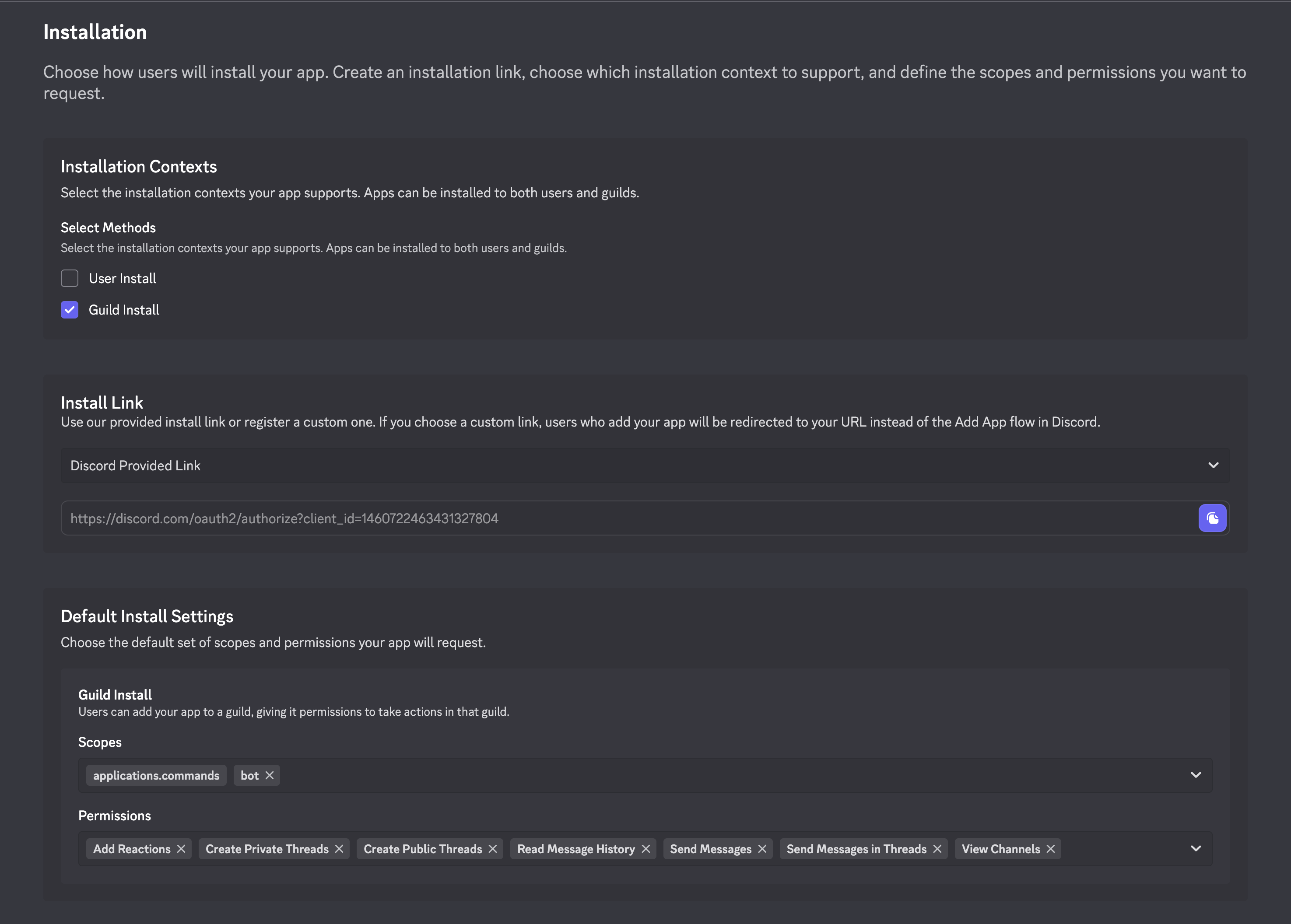
3
Enable Privileged Gateway Intents
On the Bot tab, scroll to the Privileged Gateway Intents section and enable all 3 toggles:
- Presence Intent
- Server Members Intent
- Message Content Intent
4
Install the app in your Discord server
Use the Install Link on the Installation tab to install the app in your Discord server.
5
Allow your app to access a private text channel
Go to the channel settings and click on the “Permissions” tab.Add your app to the “Allowed Users” list.
6
Retrieve your bot token
In the Developer Portal, navigate to the Bot tab and look for the Token section.Click Reset Token and copy your bot token.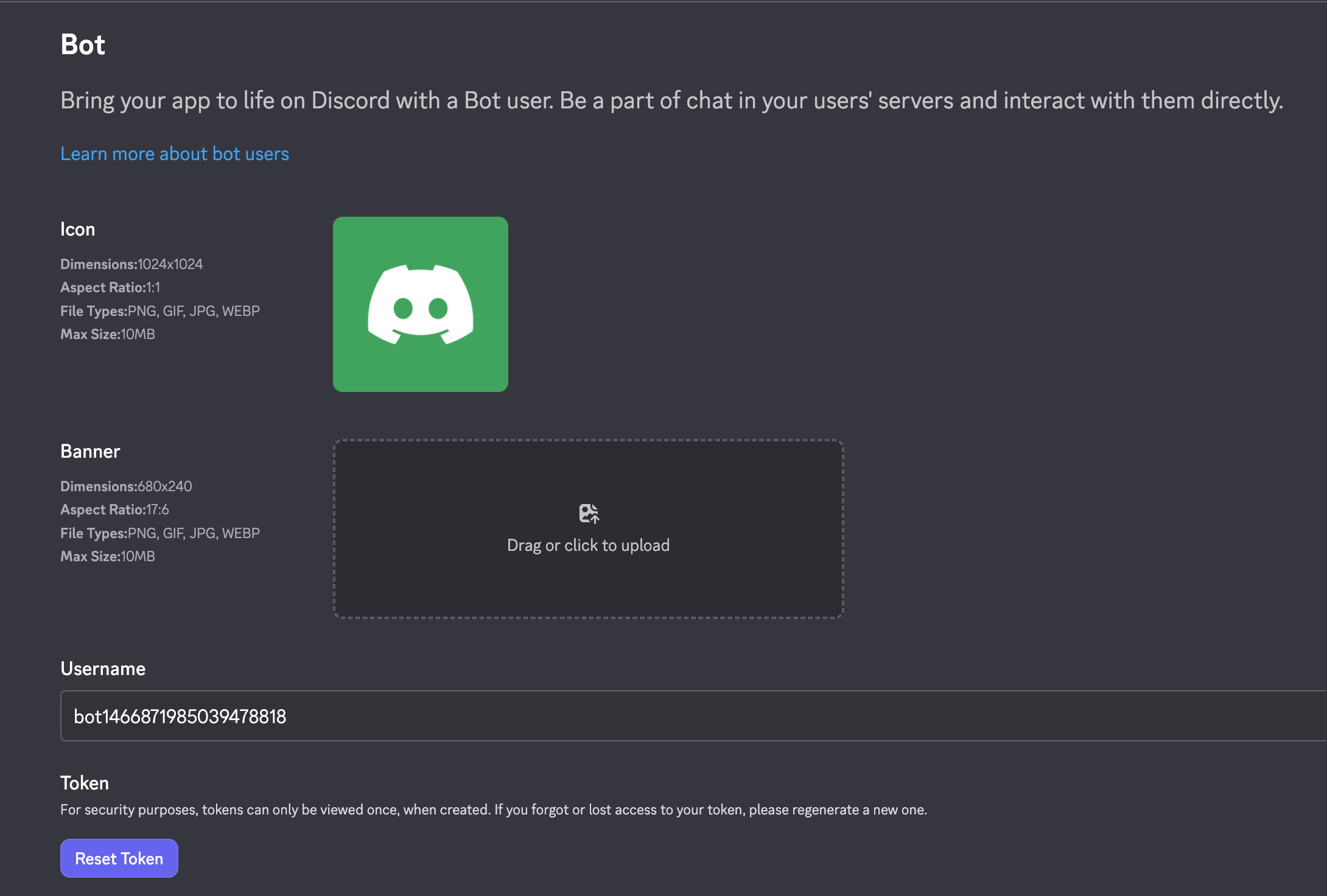
7
Configure your app in Zortex
Navigate to the Zortex Admin Panel > Discord Bots.Paste your bot token into the Bot Token field and click Create!
8
Create a registration key in Zortex
Click on the Add Server button and copy the registration key.
The registration key will only be shown once. If you lose it,
delete the server configuration and create a new one.The key is invalidated as soon as you use it and does not allow any other access to your Zortex instance.
9
Register your Server in Zortex
Send your registration key in the private channel you allowed your app to access.Your Zortex bot should respond with a message confirming the server has been registered.In Zortex, you should see the server status Registered.
10
Configure Channel behavior
Click the pencil icon next to the server name to configure the bot’s behavior.You can customize:
- The default agent that powers the bot’s responses
- Agent overrides for specific channels
- Whether the bot should respond to all messages or only to messages tagged with @ZortexBot
- Whether the bot responds in replies or threads
FAQ
Why can’t I see all of my channels in Zortex?
If you’ve added or removed channels from your Discord server, you’ll need to sync the channels to Zortex. Run!sync-channels in any text channel that ZortexBot has access to.
! is already taken by another command!
!sync-channels is currently the only command supported for ZortexBot.
If you are self-hosting, you can set the DISCORD_BOT_INVOKE_CHAR environment variable to change the command prefix.
If you are using the official ZortexBot, unfortunately, we cannot change the prefix. However,
you may still be able to run the command by creating a private channel that only ZortexBot has access to.
My Discord bot is connected but not responding to any messages
If you are seeing this behavior, you could be experiencing the following error (in background container):git pull in your Zortex repo.
Verify that API_SERVER_PROTOCOL and API_SERVER_HOST exists in your compose file.